

PSHS Office Request Forms
PWCS Apps and Device Support
Something is wrong with your laptop
If there is something wrong with your laptop or an application is showing an error message, please submit a help ticket.
How to complete the help ticket questions
Examples of issues include:
- Laptop will not turn on
- Battery will not charge
- Damaged screen or casing
- Sound not working
- Camera not working
- Damaged keyboard or mousepad
- Contact administrator messsage
- Software center issues
- Lockdown browser issue
- Memory full/out of storage message
- Can't connect to the Internet
- Laptop/App needs updating
Can't Access an App
App Assistance will be provided to students who have not been able to successfully log in to Canvas, Clever, Office 365, or Zoom (or students who need help navigating an App)
During the school year (Monday - Friday), please email Mrs. Wortham at [email protected]
Include your first and last name and your grade level. Provide a detailed description of the problem that you are having with any of these apps (PWCS Portal, Canvas, Office 365, or StudentVUE). If you are getting an error message, please include a screenshot of the message.
- If you email a request that is after work hours (or over the weekend), you will not receive a response until the next business day.
- If Tech Support is needed to resolve your issue, your email will be forwarded to our school's Tech Specialists (Mr. Choi and Mrs. McCafferty).
- If you need immediate assistance, contact the PWCS Helpdesk at 703-791-8826.
Note: App Assistance is not provided by Mrs. Wortham during Holidays, Summer Vacation, or other times when the school is closed.
Note: Mrs. Wortham assists students with activating PWCS Canvas, PWCS Portal, Office365, StudentVUE and Zoom Accounts. Her role is to show you how to use our county approved apps.
If you need technical assistance because something is wrong with your school issued laptop, please call the PWCS Help desk or contact our school's Technical Support Specialists (Mr. Choi and Mrs. McCafferty).
If you can log into your accounts, but need help with accessing modules, pages, documents, assignments, meeting links, please email your classroom teacher.
School Hotspot and WiFi Access

Please email our School Social Worker, Ms. Pippens, at [email protected] if your family would like additional details on possibly renting a free mobile hotspot for home internet use.
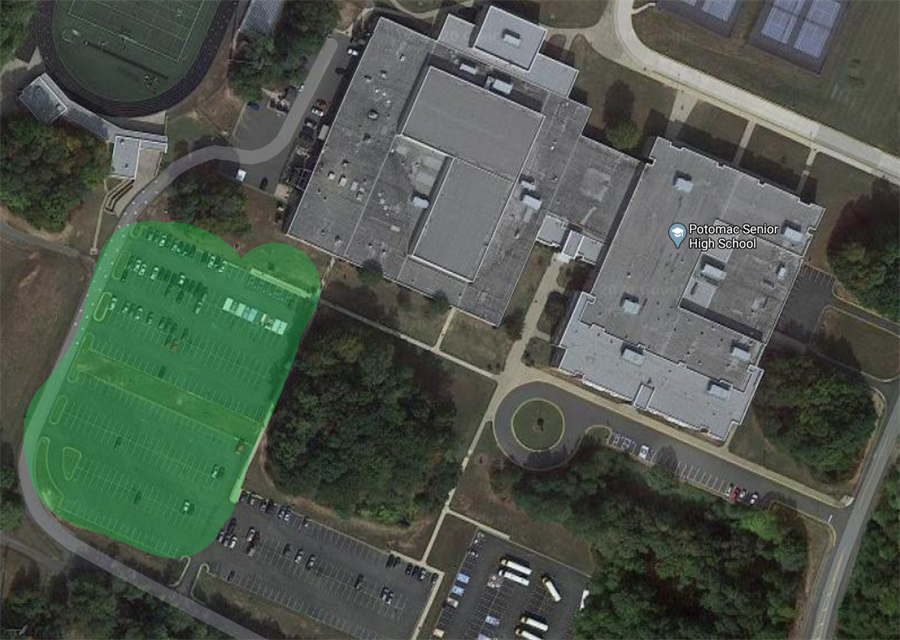
WiFi Parking Lot
If you are in need of internet access, it is available from our parking lot. No password is needed. Please refer to the map of our Potomac parking lot below. The highlighted area marks the ideal area to park and access our Wi-Fi.
My home Wi-Fi is slow or cannot access the resources I need
Every home network is different, so it can be difficult to say specifically what the issue may be for you and your system. However, here are a couple of tips that will help make the best use of your available internet speed.
-
Reduce the number of open tabs/windows to only those necessary (Each open tab uses more resources and more bandwidth)
-
Disconnect devices from your Wi-Fi that are not in use during class sessions (Every bit helps!)
Restart your computer in the morning and at lunch to clear unnecessary background processes. (Just like a good night's sleep, everything runs better with a fresh start!)
ParentVUE Assistance
ParentVUE Assistance
Need an account/activation key
Need password assistance
If you need assistance with accessing or activating your ParentVUE account, please email your child's Administrative Assistant. Refer to the "Alpha" order below to identify your contact person.
Alpha (A-CART): Ms. Katelyn Manetta - [email protected]
Alpha (CARU-HARRIN): Mrs. Lindsey McKenzie - [email protected]
Alpha (HARRIO-MERI): Mrs. Claudia Vela - [email protected]
Alpha (MERJ-SAEN): Ms. Connor Sadler - [email protected]
Alpha (SAEO-Z): Mrs. Dena Covington - [email protected]
StudentVUE Assistance
StudentVUE
This app is where students access bus and class schedules, grades, attendance information. StudentVUE accounts are already created for students.
There are two ways to access StudentVUE:
- Go to Google Chrome and enter this link: studentvue.pwcs.edu
- Download the StudentVUE app by searching "StudentVUE" in the Apple iTunes or Google Play stores.
The mobile app will ask for a district address. It is: https://va-pwcps-psv.edupoint.com
Log in with your [email protected] (your county email address and your password) and click Login.
If you can log into other county applications, but cannot log into StudentVUE, please verify that you are logging in with your whole email address. For example if your username is JamesAF25, you will log into StudentVUE with [email protected].
If you have forgotten your password, go to Password Self-Service to reset it.
Don't forget, when you reset your password, it updates the "new password" for all county apps.
Make sure your Zoom app is updated
Make sure your Zoom app is updated
It is important to make sure that your app is updated. Open the file below and follow the steps.
Update Zoom App
Insure your school device
Securranty Device Insurance
Parents/guardians have the option to purchase low-cost insurance ($32.95). Parents must sign up on their own using the following information: school name, student last and first name, student ID number, and debit/credit card information.
Learn more at the Securranty site for PWCS or by opening a flyer below.